Create a Space
IMPORTANT
The minimum number of rows of data that can be used to create a space is 1,000, and the maximum is 10,000.
CSV/Table Space
Use when: You have a spreadsheet, database export, or table (CSV/XLSX)
Best for: Projects, metadata-rich corpora, research papers, survey results
How-To
Go to “Spaces” > Create New Space
Upload your CSV file
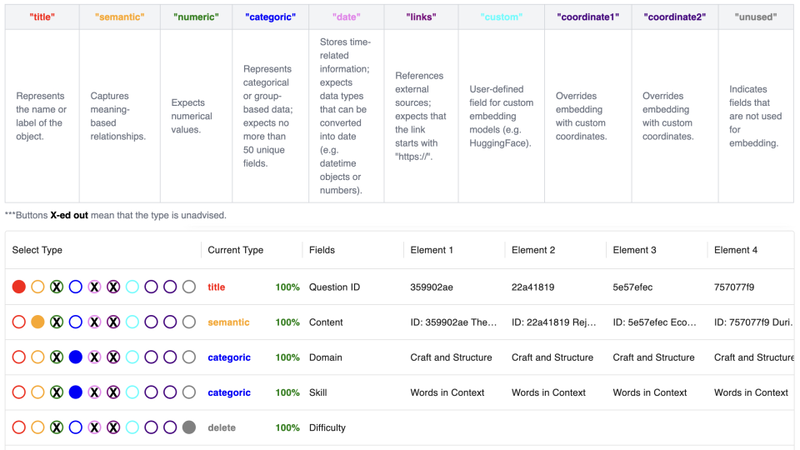
Assign columns:
- Must have one title column
- Must have one semantic column
Choose Embedding Service
- OpenAI Embeddings: Uses OpenAI’s cloud models for high-quality, out-of-the-box text embeddings.
- vLLM Embedding: Uses local or server-hosted open-source models (e.g., Llama, Mistral) for private, customizable embeddings.
Choose Chat Completion Service
- OpenAI Chat: Uses OpenAI’s chat models for summarization, Q&A, and dialog features.
- vLLM Instruct: Uses local or server-hosted instruction-following models for chat and summarization with enhanced privacy and flexibility.
Choose the Reduction Model
- UMAP: Reduces high-dimensional embeddings to 2D/3D for clear, interactive visualization.
- PCA: Uses Principal Component Analysis for simple, linear dimensionality reduction and quick mapping.
Example:
Raw Text Space
Use when: You have a collection of text files, notes, or paragraphs without structured metadata
Best for: Literature notes, meeting transcripts, social media posts, brainstorming dumps
How-To
Go to “Spaces” > Create New Space
Choose “Text Input”
Paste or upload your text
- Format: TXT, PDF, DOC, DOCX file, or copy-paste text
- Structure: Each paragraph/line = one item (separated by blank lines or newline)
- (Optional: Paste in titles for each section if you want them to appear as labels)
Multimodal Space (Floors, Web Search, Hybrid)
Use when: You want to combine different types of data—text, images, molecules, structured tables, or external search results
Best for: Advanced projects, cross-modal analysis, knowledge graphs, or exploring external sources (e.g., literature + image dataset, or your CSV + live web search)
How-To
Go to “Spaces” > Create New Space
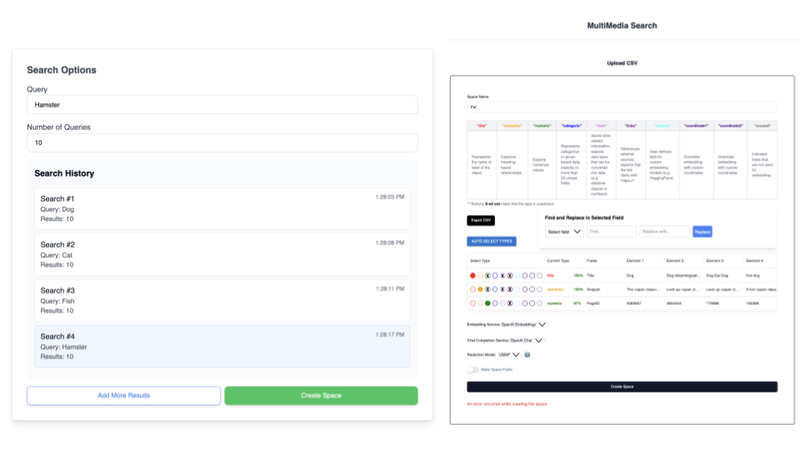
Upload multiple files (e.g., CSV + TXT, or CSV + images, or use web search)
- Assign each type to a floor: e.g., Text on Floor 1, Images on Floor 2
Floors explained:
- Each floor = a separate layer in your space (text, images, metadata, etc.)
- Link items across floors by common ID/key for cross-modal navigation
- Use floors to switch context, e.g., review molecules on one floor and literature on another
Web Search:
- Use the integrated “Web Search” tool or extension to pull in live search results, abstracts, or content (these can become a floor or augment existing items)
Configure columns/fields per floor as needed
Name and describe your space
Click “Create”—Mantis processes embeddings for each modality and builds a multi-floor map
Example:
What are “Floors” in Mantis?
Think of floors as layers of data—each floor visualizes a different modality or abstraction level
You can toggle floors in the UI (buttons or side-tabs)
Examples:
- Floor 1: Research papers (text)
- Floor 2: Protein images (images)
- Floor 3: Drug data (structured CSV)
How To Add Floors?
Follow the same as CSV, but you must have one field as 'Connection', which connects the points from each floor.